C10 Wrist Camera
1. Product Introduction
Synria C10 is a high-performance robotic arm wrist camera independently developed by Shenzhen Synria Technology Co., Ltd., deeply optimized for robotic manipulation and intelligent perception scenarios. The product features an 8-megapixel 4K ultra-high-definition wide-angle imaging system, capable of stably outputting clear, fine-grained high-resolution visual information in complex working environments, providing a solid foundation for precise operation and highly reliable perception. The C10 adopts a driver-free USB interface design, fully compatible with Windows / macOS / Linux multi-platform. It is plug-and-play and can quickly complete video capture and system integration without additional configuration, reducing deployment and debugging costs. With its stable imaging performance and outstanding system compatibility, the Synria C10 can be widely applied to scenarios such as robotic arm manipulation, visual perception, teaching and reproduction, intelligent control, and algorithm validation, making it a professional-grade vision hardware solution for embodied intelligence and robotics R&D.
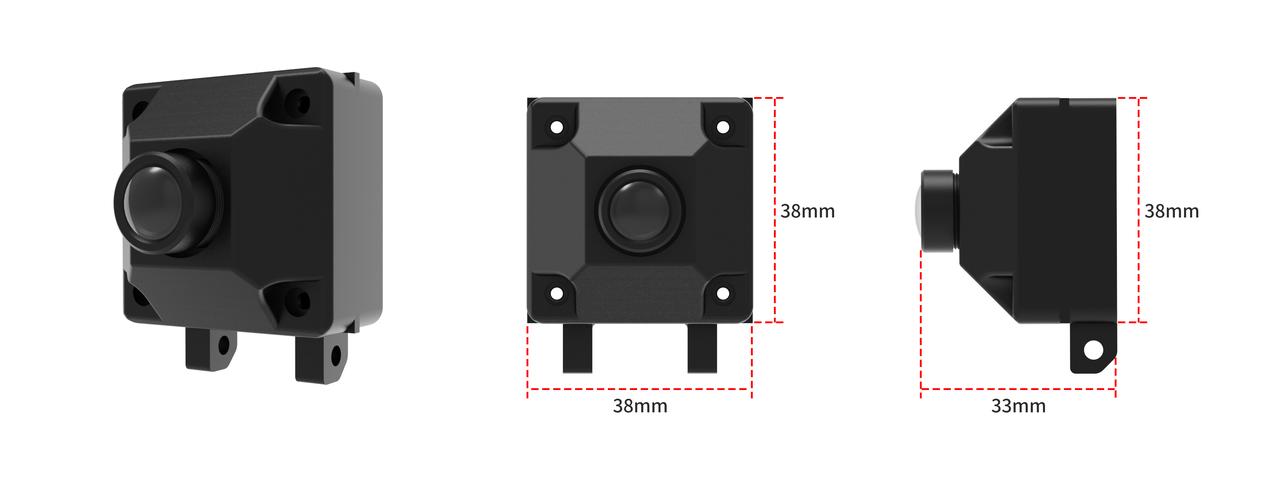
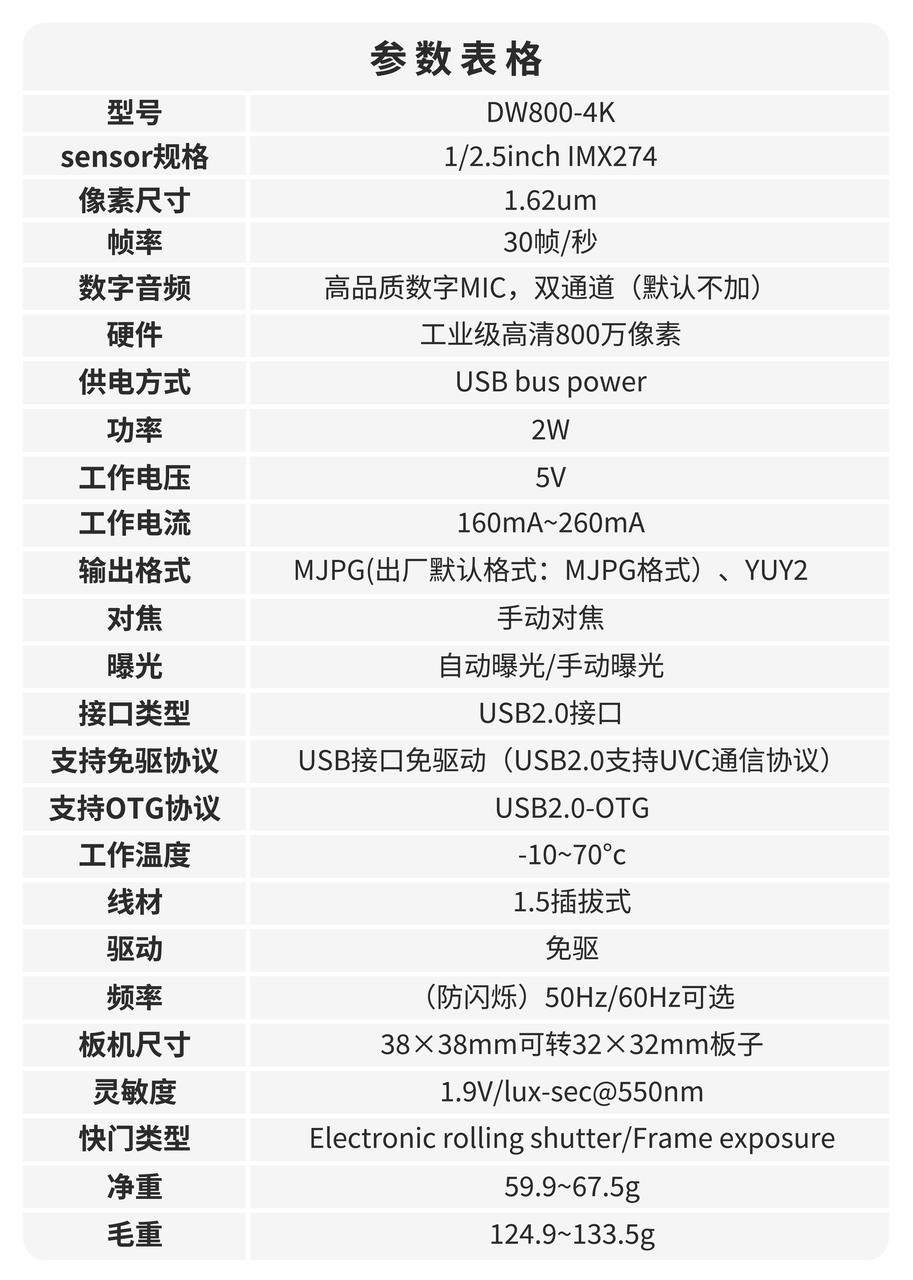
2. Product Information
- Product name: Synria C10 HD Wrist Camera
- Maximum resolution: 3840 x 2160
- Frame rate: 30 FPS
3. Usage
3.1 Using the Native System
After connecting the C10, plug the USB cable into the computer's USB port, and you can directly invoke the Windows / Ubuntu system camera to view the live feed.
3.2 ROS 2 Humble Usage
- Install the usb_cam driver package for ROS 2 Humble:
sudo apt update
sudo apt install ros-humble-usb-cam
- Check the available cameras on the computer and confirm the device node (usually /dev/video0):
v4l2-ctl --list-devices
Example output:
TSTC USB20 WEB CAMERA: TSTC USB (usb-0000:00:14.0-1):
	/dev/video0
	/dev/video1
	/dev/media0

Intel(R) RealSense(TM) Depth Ca (usb-0000:00:14.0-3):
	/dev/video2
	/dev/video3
	/dev/video4
	/dev/video5
	/dev/video6
	/dev/video7
	/dev/media1
If multiple cameras are connected to the device, there may be multiple outputs; among them, TSTC USB20 WEB CAMERA: TSTC USB represents the C10 camera.
- Launch the camera node using either of the following methods:
-
Method A: Run the node directly
# Assuming the system has recognized the C10 as /dev/video0
ros2 run usb_cam usb_cam_node_exe --ros-args -p video_device:=/dev/video0
If a calibration file warning appears:
[ERROR] [1770262173.661440917] [camera_calibration_parsers]: Unable to open camera calibration file [/home/ubuntu/.ros/camera_info/default_cam.yaml]
[WARN] [1770262173.661446566] [usb_cam]: Camera calibration file /home/ubuntu/.ros/camera_info/default_cam.yaml not found
This indicates that the intrinsic calibration file was not found, which does not affect image publishing; if precise measurement is required, place the calibration file at the corresponding path.
-
Method B: Use the launch file (recommended)
You may need to install dependencies first:
sudo apt install python3-pydanticLaunch via launch file:
# Assuming the system has recognized the C10 as /dev/video0
ros2 launch usb_cam camera.launch.py video_device:=/dev/video0
Open another terminal to view the image:
ros2 run rqt_image_view rqt_image_viewSelect the topic
/camera/image_rawin the top-left corner of rqt_image_view to view the image.
3.3 Python SDK Usage
- Get the code and examples:
git clone https://github.com/Synria-Robotics/Synria-C10-SDK.git
cd Synria-C10-SDK
- Create a Python environment (the example uses Conda):
conda create -n alicia python=3.10
conda activate alicia
- Installation methods
-
Method A: Install from source (suitable for development and modification)
# Windows (PowerShell)
python -m venv .venv
./.venv/Scripts/Activate.ps1
python -m pip install -e .
# macOS / Linux (bash)
python -m venv .venv
source .venv/bin/activate
python -m pip install -e . -
Method B: Install from PyPI (package name
synria_c10, available directly after release)python -m pip install synria_c10
- Usage example
Before testing, adjust device_index according to the actual port (if there is no built-in camera, you may need to set it to 0):
# Windows (PowerShell)
with USBCamera(device_index=2, width=640, height=480, backend=cv2.CAP_DSHOW) as cam:
	...

# macOS / Linux (bash)
with USBCamera(device_index=2, width=640, height=480, backend=cv2.CAP_V4L2) as cam:
	...
Run the example:
cd Synria-C10-SDK
python examples/camera_use.py
Press q or close the window to exit.
4. Version Roadmap
The current release version is 1.0.0. More calibration examples, interface configuration templates, and case code will be added in the future to support more usage scenarios.