Alicia-M Desktop Software Guide
Synria Desk is the recommended desktop software for the Alicia-M series. It can be used for device onboarding, single-arm control, enabling and mode switching, gripper parameter configuration, remote teleoperation, URDF visualization, firmware management, and device settings. This article organizes the entry points along the actual usage path of the Alicia-M; for a complete feature description, continue to Synria Desk Desktop Software.
Feature Overview
| Use Case | Target Object | Main Functions |
|---|---|---|
| Device onboarding | Alicia-M follower arm | Scan devices, view device list, enter single-arm control workspace |
| Single-arm control | Alicia-M follower arm | Connect, view status, self-test, reset origin, enable switch, mode switching |
| Gripper parameters | Alicia-M gripper | Target gripping force, feedforward torque, holding torque, force-control parameter configuration |
| Remote teleoperation | Alicia-M as the follower-arm end | Enter channel ID, join session, receive teaching-arm data and execute |
| SparkVis visualization | Alicia-M / custom URDF | 3D pose viewing, joint control, Cartesian control, trajectory planning |
Download, Installation, and Device Onboarding
Please first install Synria Desk according to your operating system. The download entry can be found at Download and Installation, which supports Windows, macOS, Linux amd64, and Linux arm64. After installation, Linux users can open it from the application menu, or run synria-desk from the command line.
After installation, connect the Alicia-M follower arm to the computer via USB and confirm that the device is powered on. After entering the home page, click "Scan Devices", and the software will list the currently connectable devices and enter the single-arm control workspace.
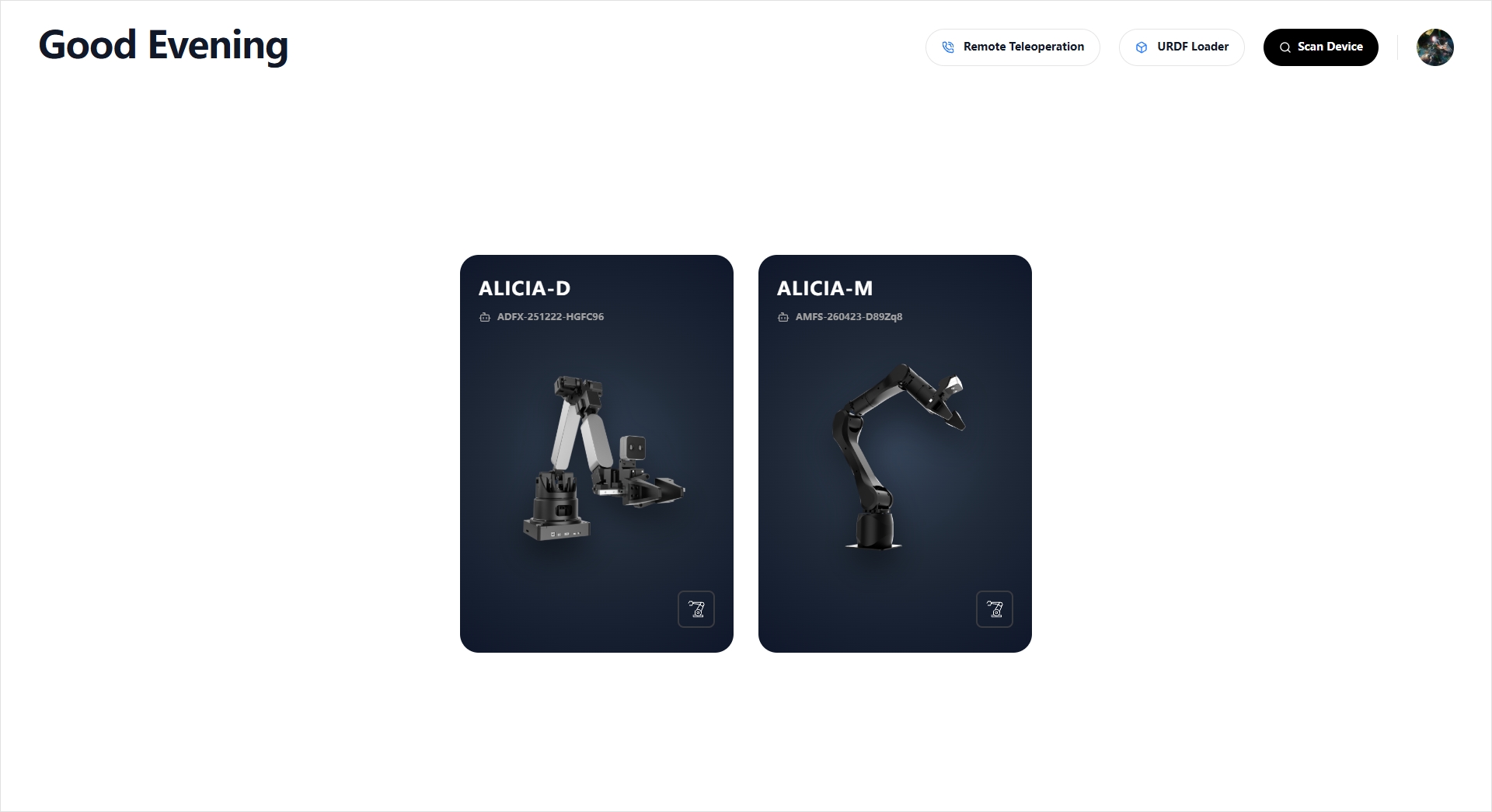
- The device list shows basic information such as device ID, serial number, and connection status.
- On first launch, the software performs a local service health check and initialization.
- For the device entry and home page description, see Home Page and Device Entry.
Alicia-M Follower Arm: Dashboard and Basic Control
After selecting the Alicia-M follower arm, the dashboard is used to complete connection checks and basic motion verification. This is suitable for onboarding the device for the first time, confirming the firmware version, checking the gripper status, and switching control modes.
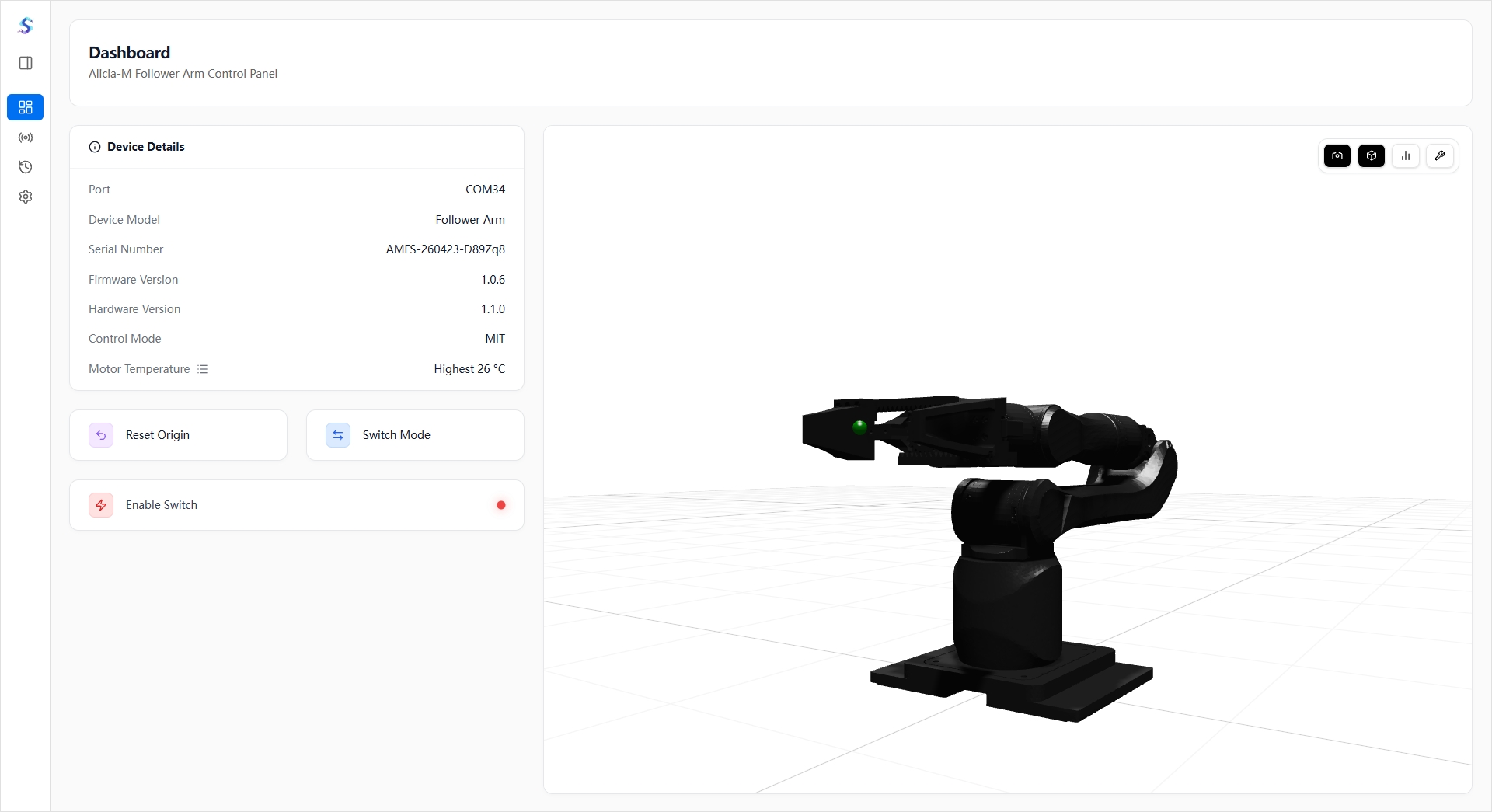
Common operations include:
- Viewing connection status, device model, serial number, firmware version, hardware version, gripper information, self-test status, and temperature status.
- Performing connect / disconnect, system self-test, and origin reset.
- Using the Alicia-M enable switch to bring the device into or out of an executable state.
- Switching control modes and adjusting parameters as needed for the task.
- Entering the firmware management page to check for updates, view version history, and perform upgrades.
For the complete description, see Single-Arm Control.
SparkVis: 3D Visualization and Motion Control
SparkVis is used to view the 3D pose of the robotic arm and to perform joint, Cartesian-space, and trajectory-planning control through a graphical interface. It is suitable for verifying the arm's motion range, end-effector pose, and trajectory effects before writing SDK programs.
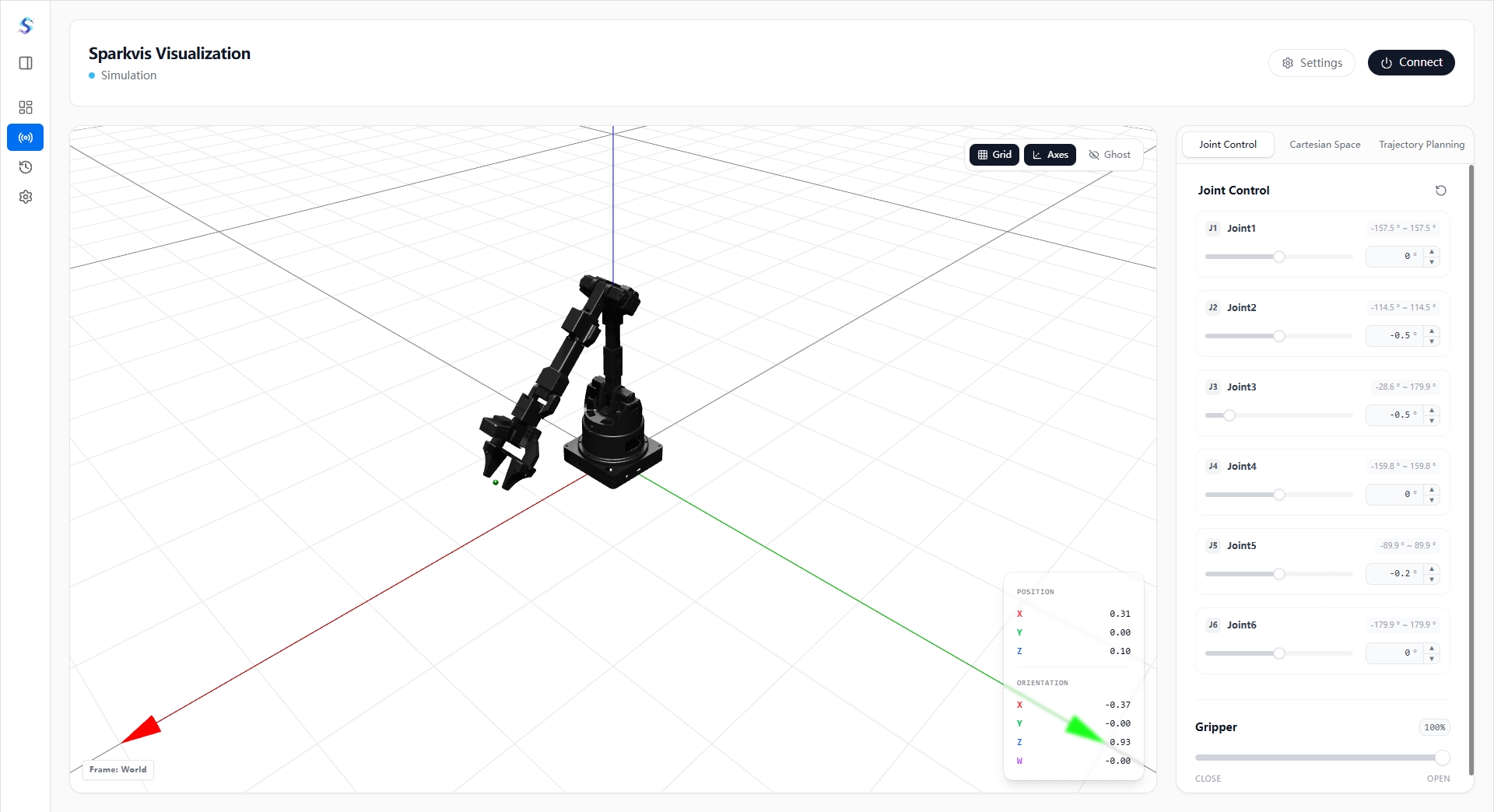
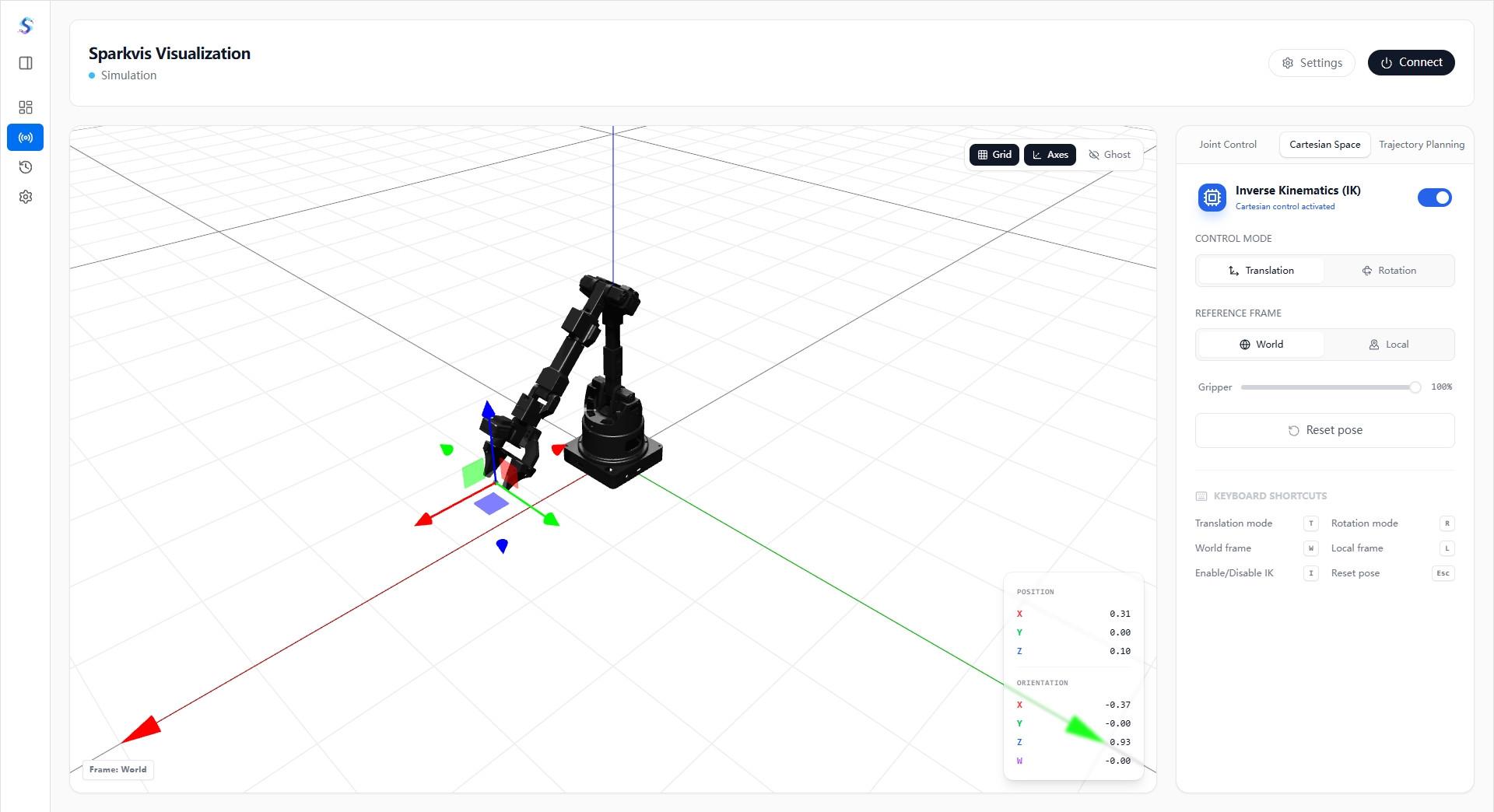
Available capabilities include:
- Viewing end-effector position, end-effector pose, world / local coordinate frames, and the robotic arm model.
- Adjusting joint angles and gripper opening/closing via sliders or input boxes.
- After enabling IK control, adjusting end-effector translation and rotation in Cartesian space.
- Adding waypoints, generating trajectories, executing / pausing / stopping trajectories, and importing or exporting trajectory files.
- Loading the preset Alicia-M model or a local
.urdffile for model verification.
For custom models and URDF usage, see Custom URDF and Visualization.
Gripper Parameters and Device Settings
The Alicia-M supports gripper parameter configuration in the device settings, which is suitable for tuning the gripping performance of different grasping tasks. The parameters affect the gripper's actual output, so it is recommended to verify them in low-risk scenarios before using them in formal tasks.
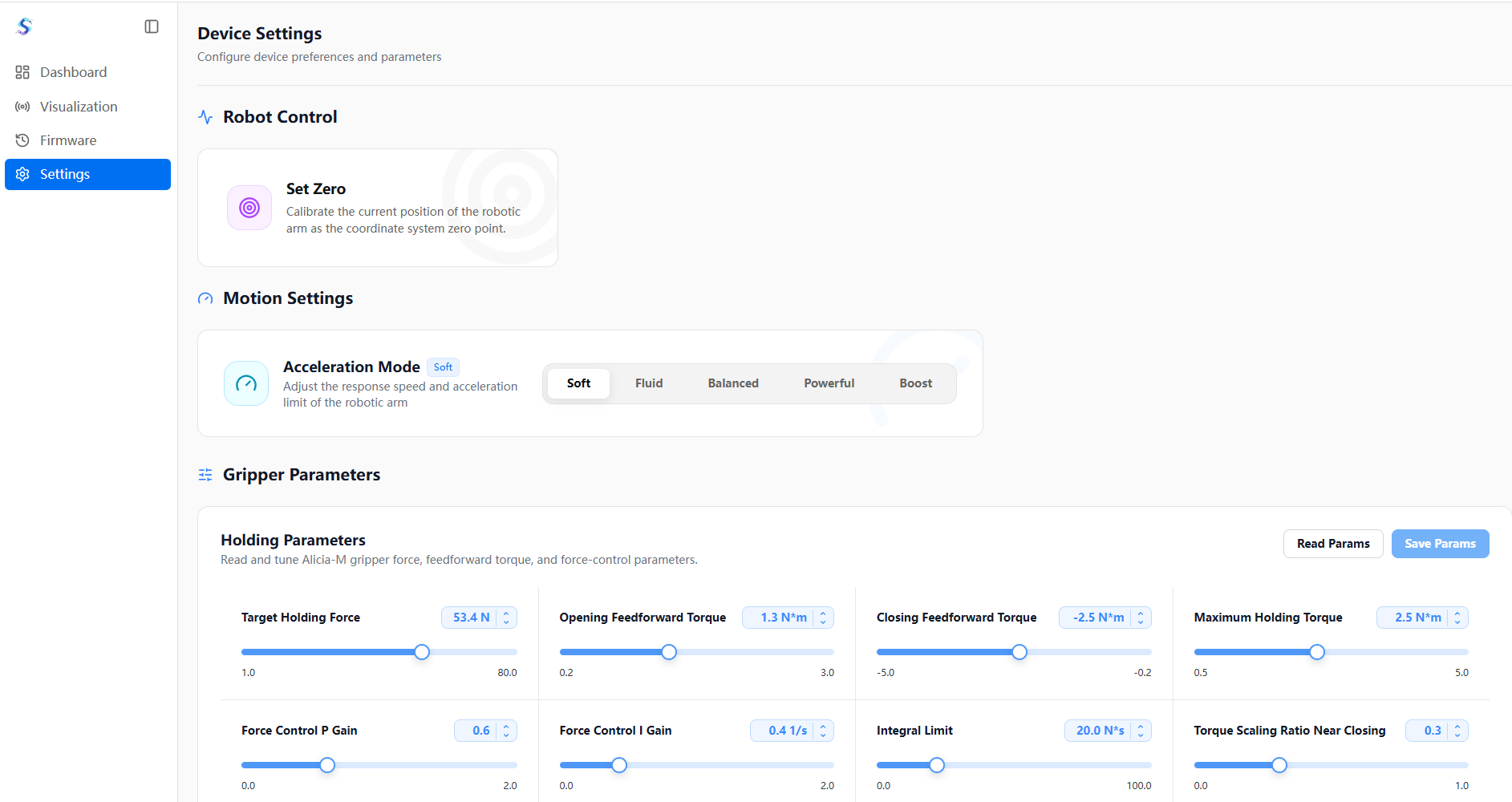
Configurable items include:
- Target gripping force.
- Opening and closing feedforward torque.
- Maximum holding torque.
- Force-control proportional, integral, and integral limiting.
- Torque scaling ratio when approaching closure.
- Zero-point setting and motion response mode.
Tuning recommendations:
- First confirm on the dashboard that the device connection, temperature, and self-test status are normal.
- Adjust the gripper parameters item by item, changing only one key parameter at a time.
- Use low-speed, low-risk objects for gripping verification.
- After confirming that the results are stable, integrate the Alicia-M Python SDK or remote teleoperation tasks.
Remote Teleoperation as the Execution End
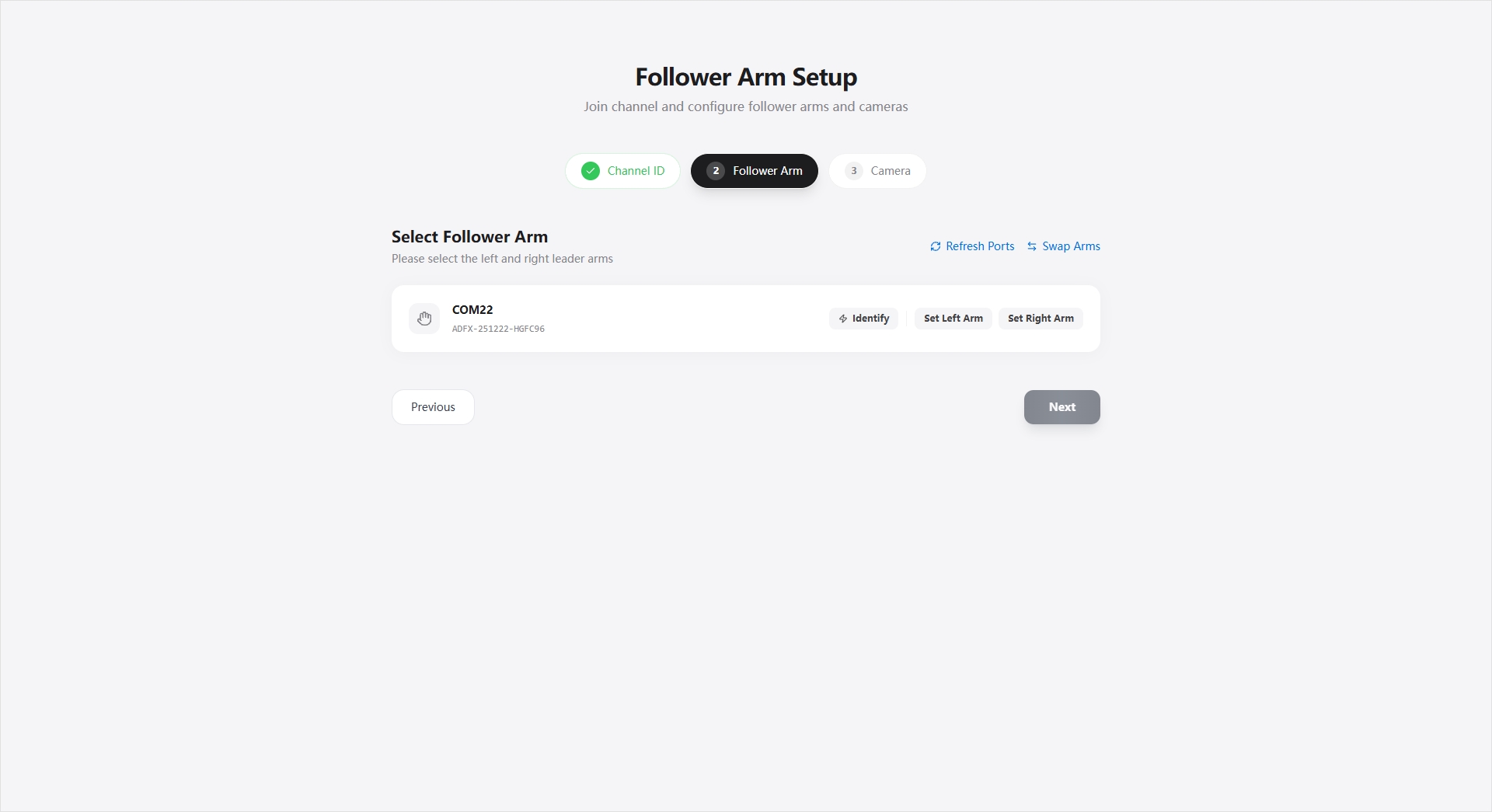
Synria Desk supports passing teaching-arm motions to the Alicia-M follower arm in real time. The Alicia-M typically connects as the follower-arm end: enter the channel ID created on the teaching-arm end, select the Alicia-M as the left-arm or right-arm execution device, and select a local camera to enter the session.
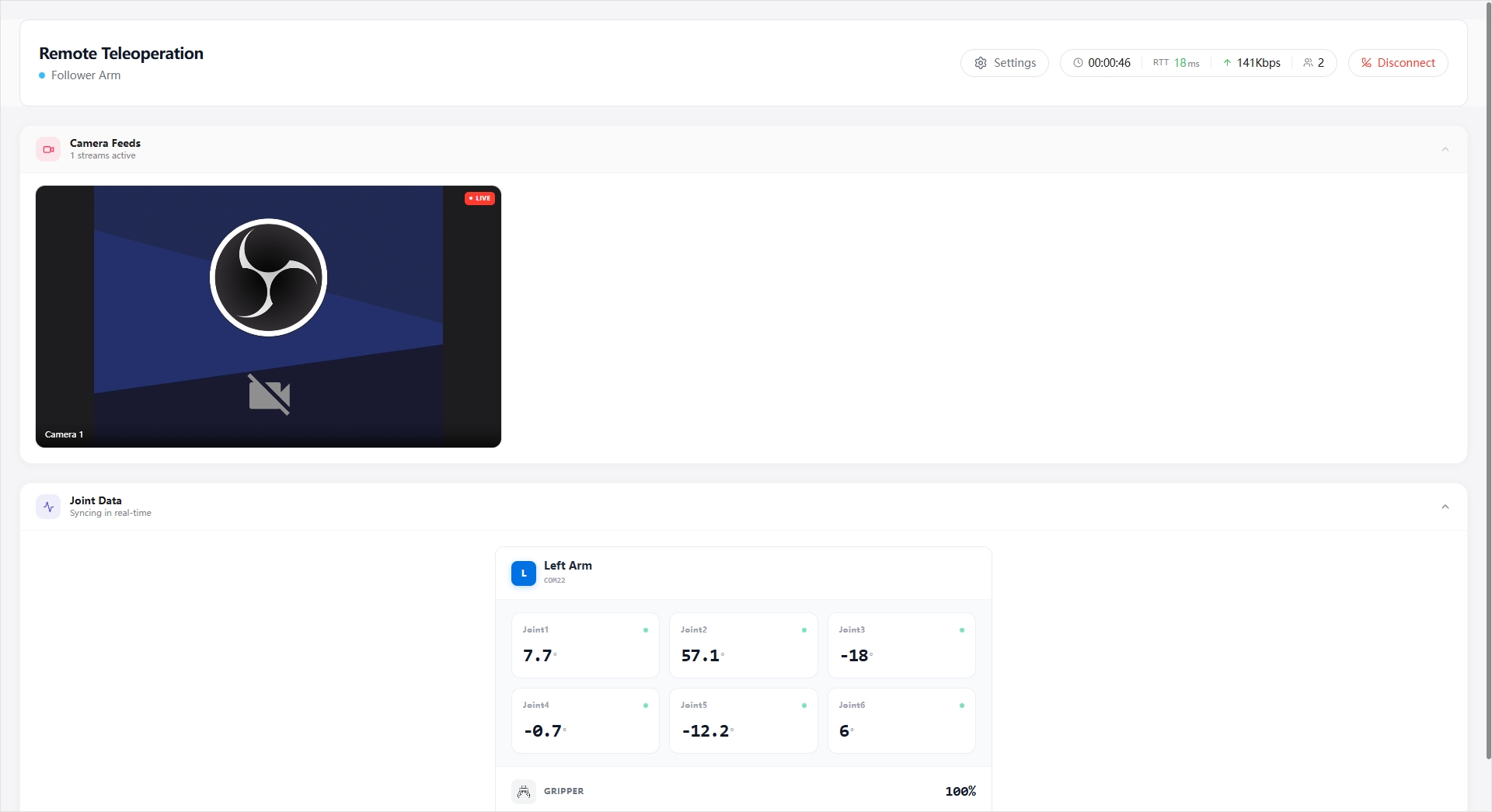
During the session you can view:
- Local camera feed streaming status.
- Network RTT, uplink bandwidth, number of online participants, and session duration.
- Alicia-M left and right arm joint angles and gripper status.
- Teaching-arm data reception status and follower-arm execution status.
- Execution speed settings and the disconnect entry.
For the complete description, see Remote Teleoperation.
Firmware Management and Usage Recommendations
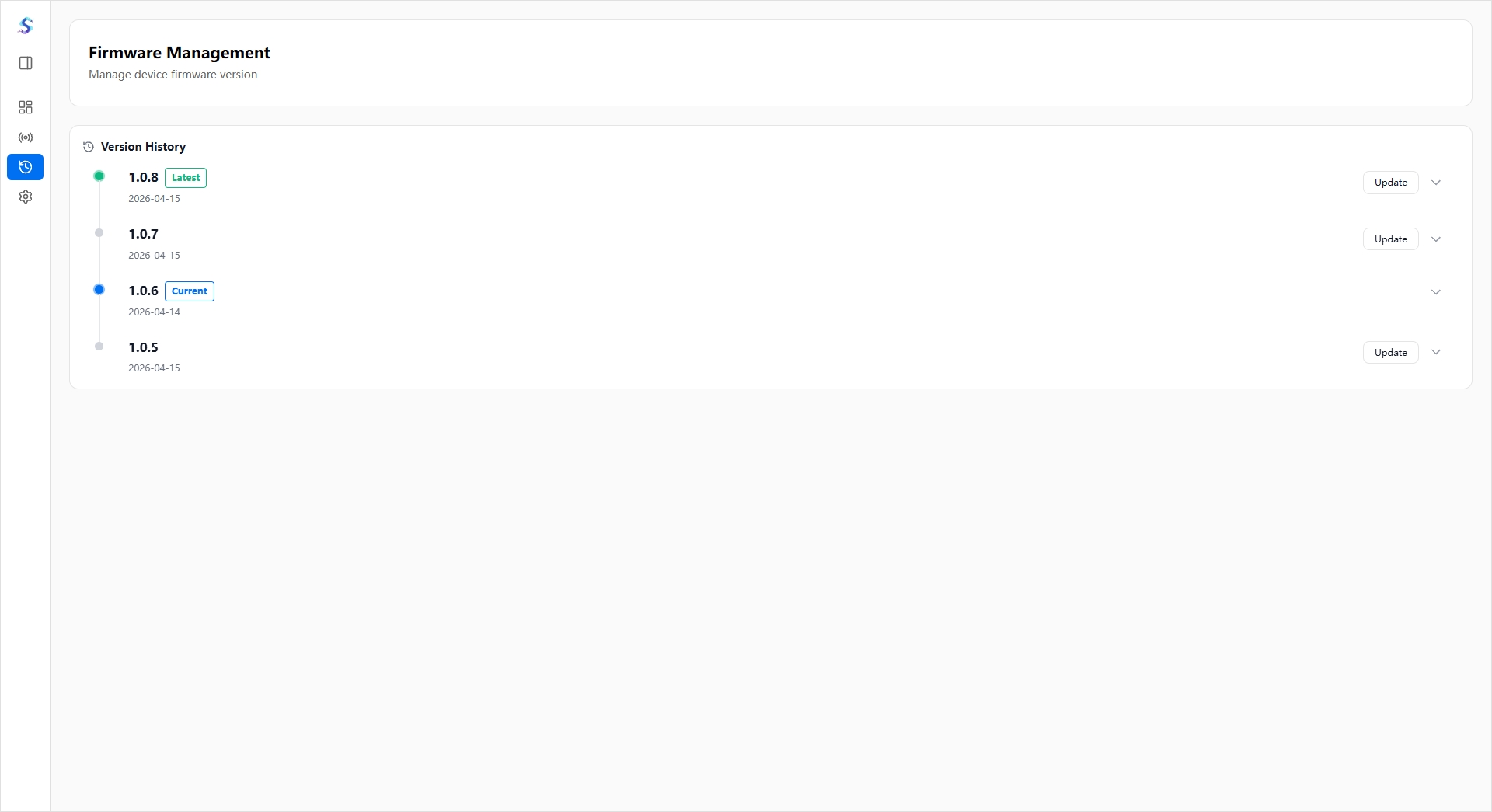
The firmware management page is used to check the current firmware version, view version history, and perform upgrades or rollbacks. The device settings page is used for zero-point setting, motion response mode adjustment, and Alicia-M gripper parameter configuration.
It is recommended to prioritize using the desktop software in these scenarios:
- First-time onboarding of a new device, when you need to confirm the firmware, hardware, gripper, and temperature status.
- When you need to reset the origin, set the zero point, or switch control modes before debugging.
- When you need to quickly verify joints, gripper, trajectories, and the teleoperation link.
- When you need to first tune the gripper parameters through the graphical interface before integrating a Python SDK program.
When you need automated control, batch experiments, or secondary development, use it together with the Alicia-M Python SDK.