Download and Installation
Linux Installation Instructions
amd64 Version
After downloading the .deb installation package, Ubuntu amd64 users can run the following in the directory where the package is located:
sudo apt install ./synria-desk_1.0.4-5_amd64.deb
If the file is in the downloads directory, for example ~/Downloads:
cd ~/Downloads
sudo apt install ./synria-desk_1.0.4-5_amd64.deb
After installation, you can usually search for Synria Desk in the application menu to open it, or run it from the command line:
synria-desk
arm64 Version (Adapted for Jetson Orin Nano)
After downloading the .deb installation package, Ubuntu arm64 users can run the following in the directory where the package is located:
sudo apt install ./synria-desk_1.0.4-5_arm64.deb
If the file is in the downloads directory, for example ~/Downloads:
cd ~/Downloads
sudo apt install ./synria-desk_1.0.4-5_arm64.deb
After installation, you can usually search for Synria Desk in the application menu to open it, or run it from the command line:
synria-desk
macOS Installation Instructions
After downloading the .dmg installation package, macOS users double-click to open the package and drag Synria Desk.app into the Applications directory.
After installation, you can open Synria Desk from Launchpad or the Applications directory.
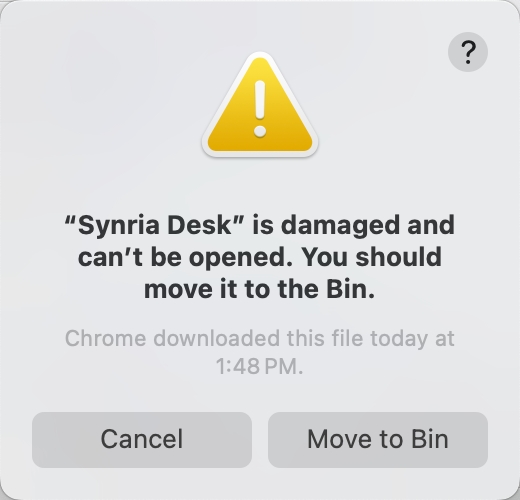
⚠️ Note for macOS users: If you encounter a system restriction prompt, you can run the following command in the terminal to lift the restriction:
sudo xattr -rd com.apple.quarantine /Applications/Synria\ Desk.app