Leader Arm Configuration and Angle Mapping
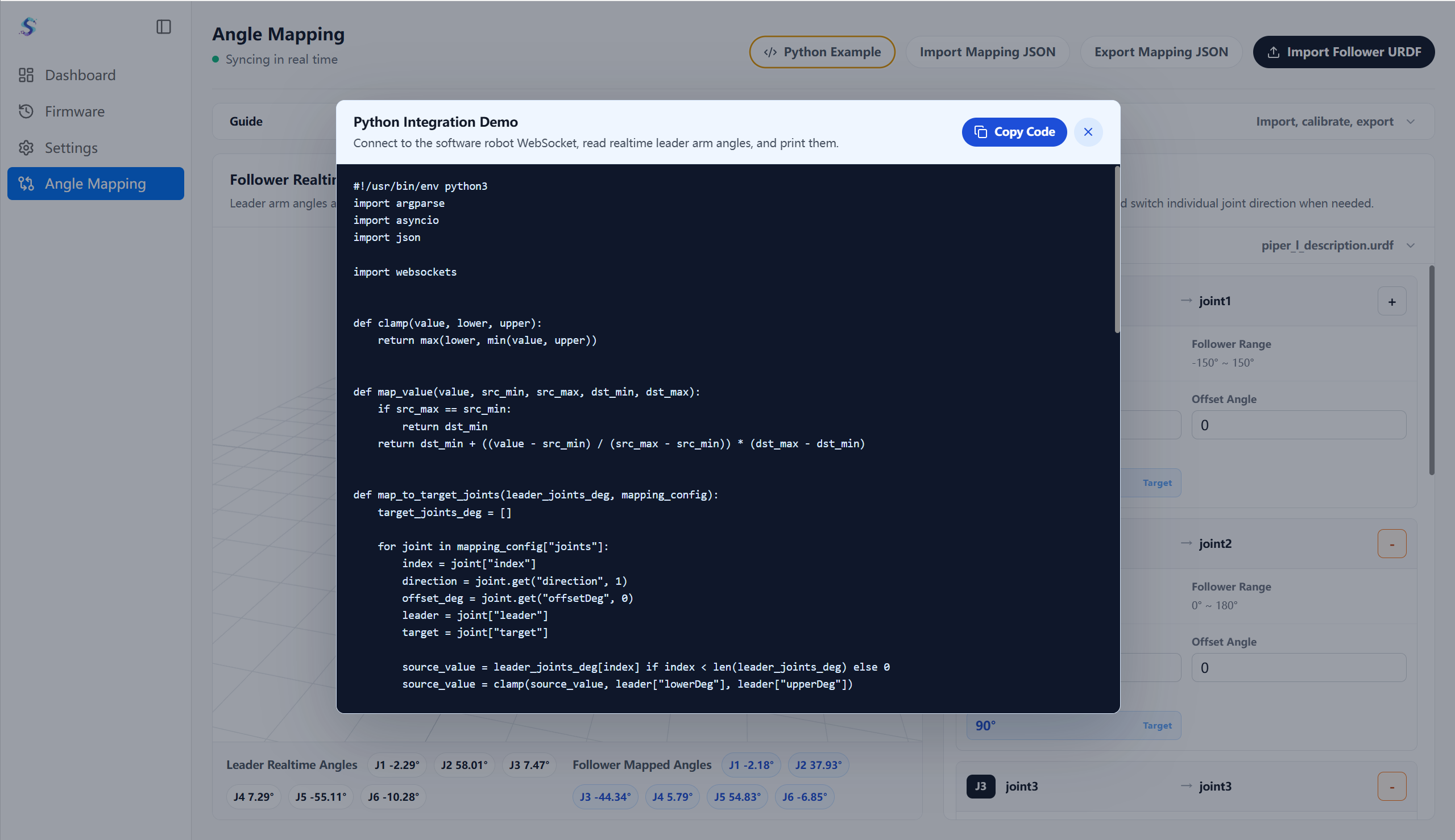
After selecting an Alicia-DL leader arm device, you enter the dual-arm control workspace. Through the angle mapping feature, you can map leader arm joint data to a follower arm of any brand, import a third-party URDF for preview and calibration, and export the mapping configuration to integrate directly with the Python SDK. The left navigation includes:
- Dashboard
- Firmware Management
- Device Settings
- Angle Mapping
Dashboard
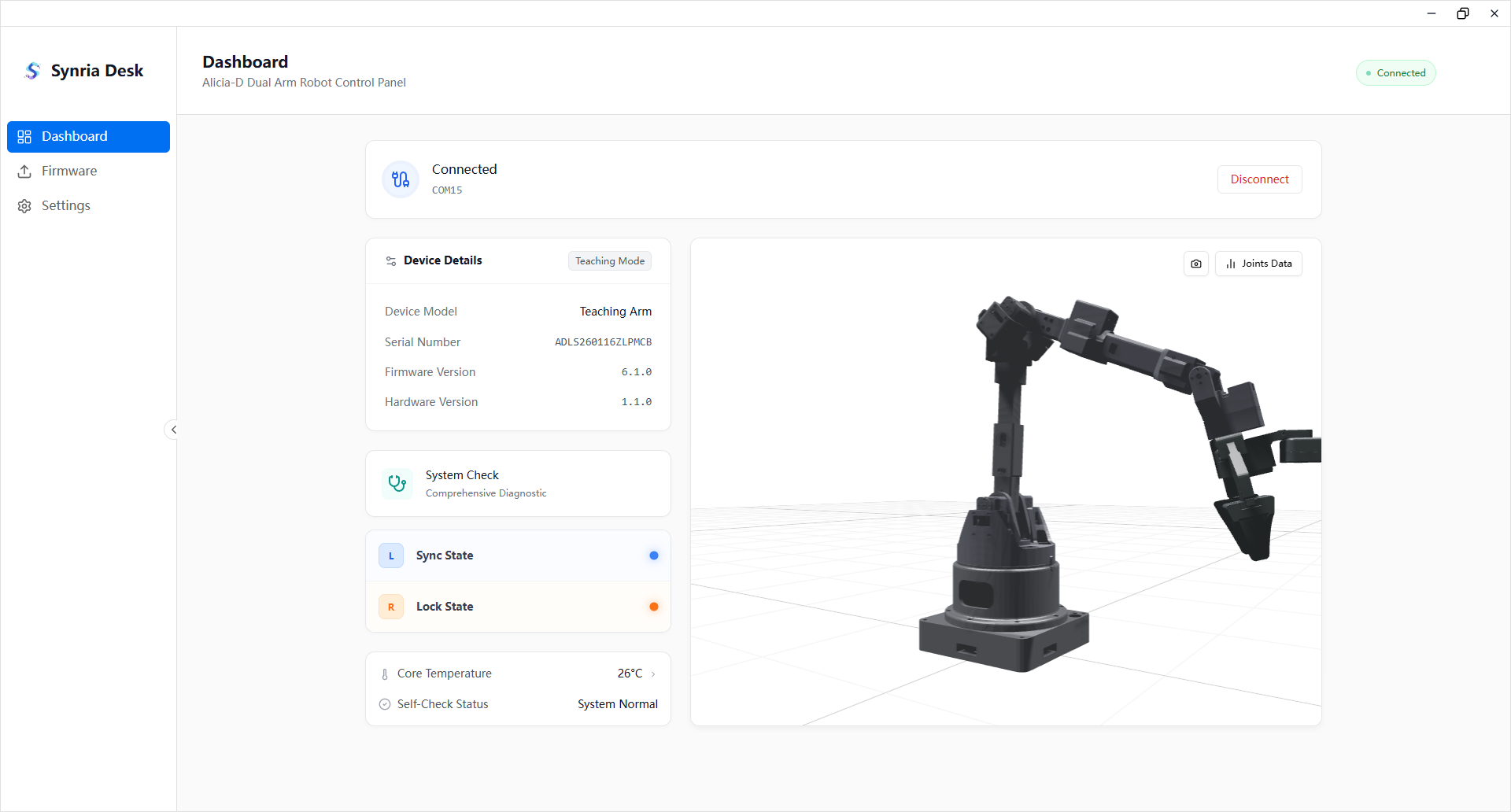
The dashboard is mainly used for status overview and dual-arm collaborative control:
- Displays device connection status, device information, and version information.
- Supports connecting / disconnecting the device.
- Supports system self-check.
- Supports temperature viewing and status tips.
- Supports viewing the follower arm's 3D spatial status.
- Supports displaying leader arm status values:
- Synchronization Status
- Lock Status
Firmware Management
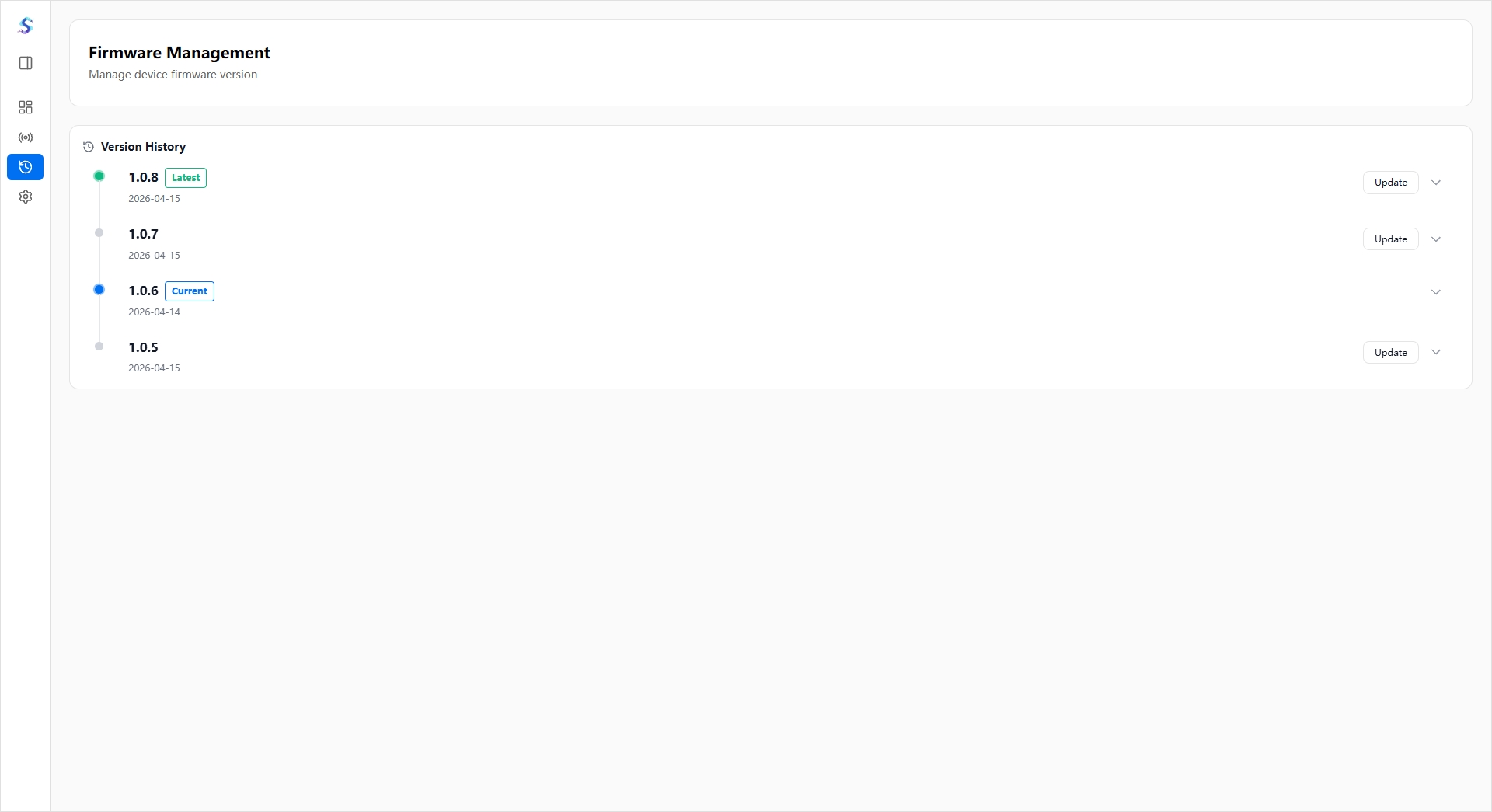
The firmware management page for robotic arm devices:
- View the current version.
- Check for updates.
- Browse version history and release notes.
- Perform upgrade / rollback.
Device Settings
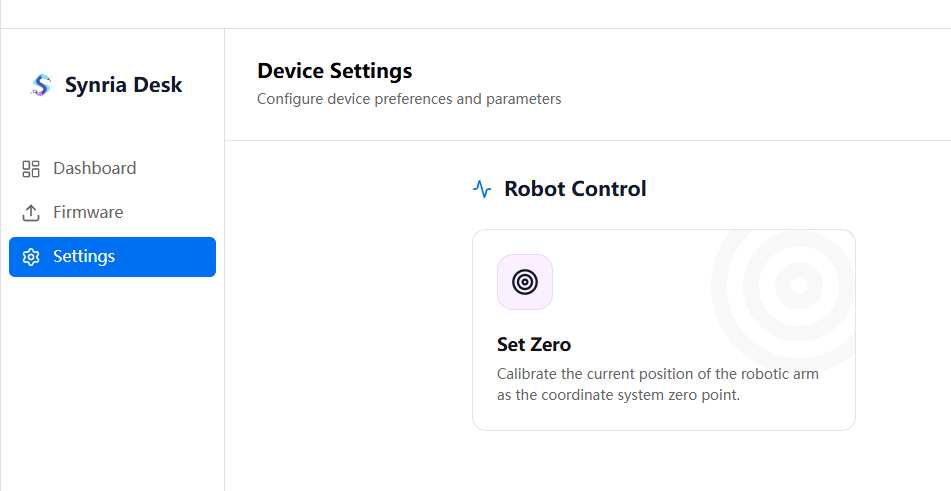
The device settings page currently mainly provides:
- Set the zero point.
- View and adjust related device parameters.
Angle Mapping
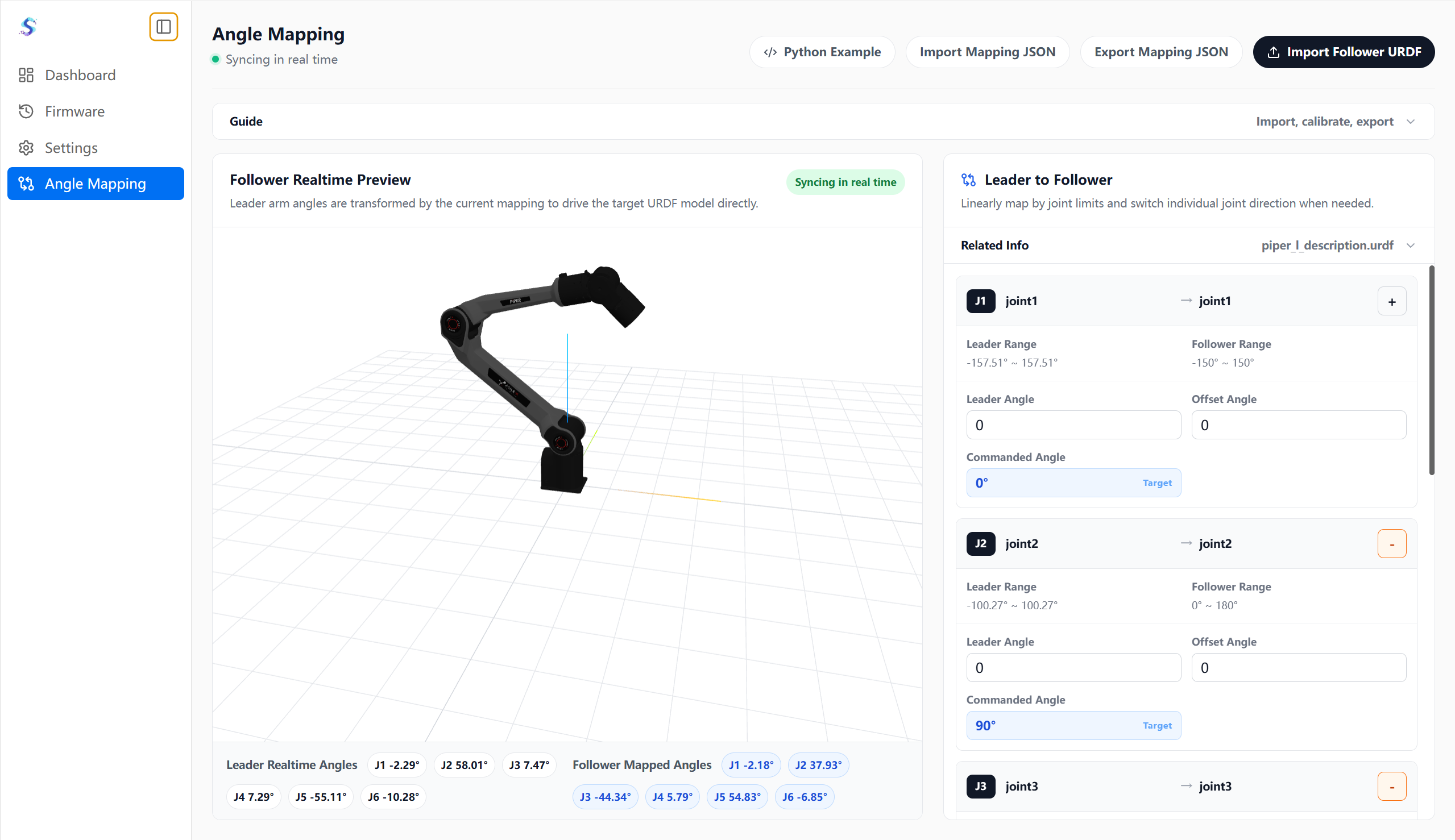
The angle mapping page is used to configure the joint angle mapping relationship from the leader arm to the follower arm:
- Preview the follower arm URDF model pose in real time.
- View the leader arm's real-time angles and the follower arm's mapped angles.
- Configure a linear mapping relationship per joint, with support for adjusting the offset angle.
- Use the
+ / -in the joint configuration card to adjust the motion direction relationship between the leader arm and the follower arm. - Support importing / exporting the mapping JSON to reuse mapping configurations.
- Support importing the follower arm URDF for calibrating and previewing the target model.
- Provides a Python example to reuse the mapping logic in development scenarios.
The top of the page shows the current synchronization status, making it easy to determine whether the leader arm data is driving the target model in real time.
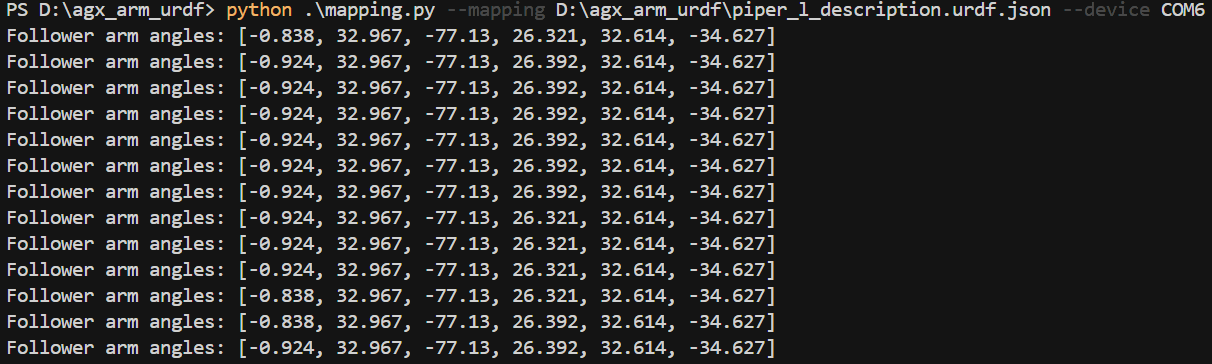
The Python example can be used together with the exported mapping JSON and is suitable for integrating with robotic arms of the Aloha configuration. When running the example script, pass in the mapping file path and the device serial port to read leader arm data and continuously output the mapped follower arm angles. During development, you can feed this angle data into the follower arm SDK to quickly build a custom teleoperation workflow.